

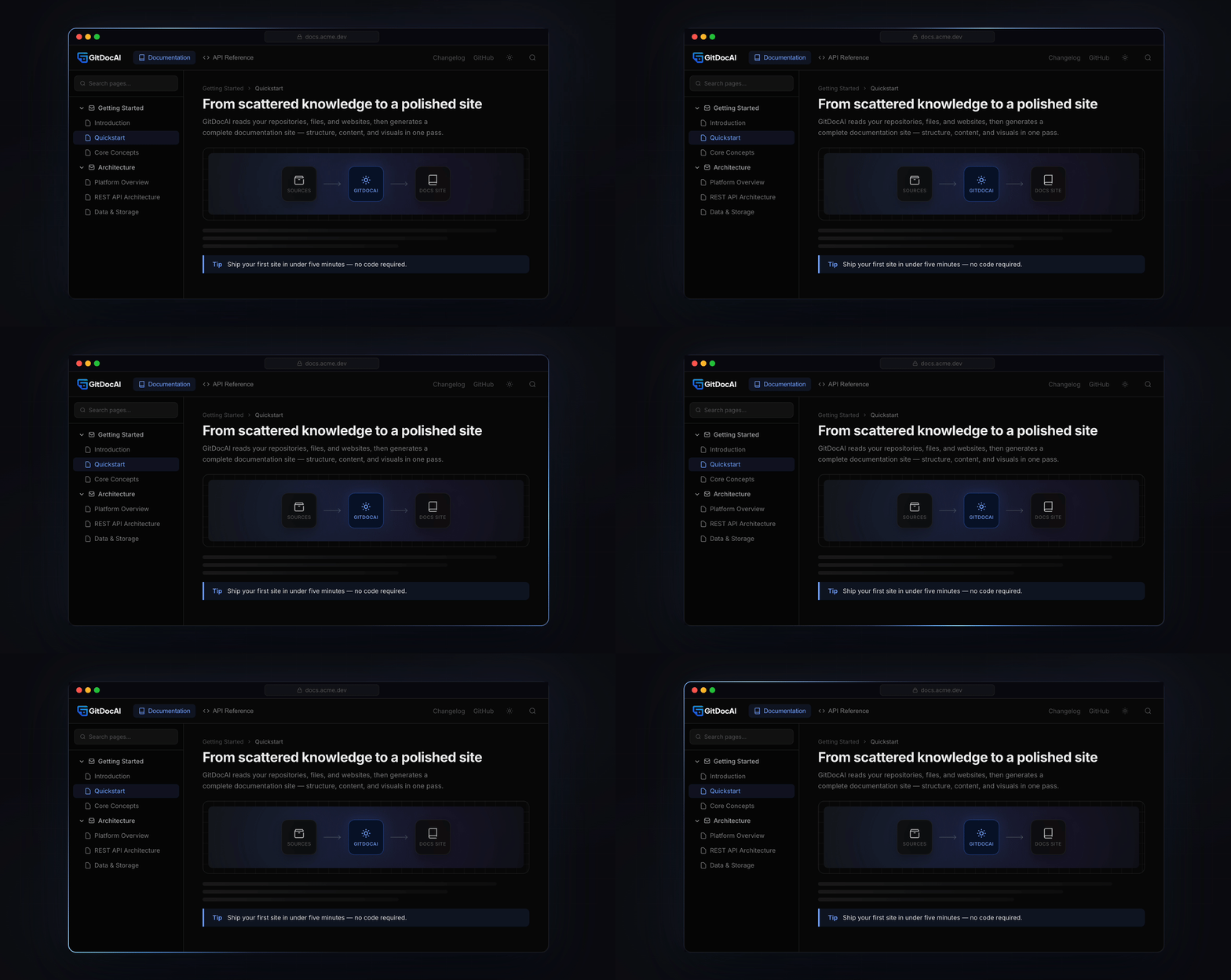
Welcome to GitDocAI! GitDocAI is an AI-powered platform that transforms your scattered knowledge—like GitHub repositories, files, and websites—into a polished, searchable documentation website automatically.
Whether you are part of a product, support, engineering, or operations team, this guide will help you understand the core concepts of the platform and how to navigate your new workspace.
What is GitDocAI?
Writing and maintaining documentation manually takes time away from building your product. GitDocAI solves this by ingesting your raw sources and automatically generating the structure, writing the content, and designing the visuals.
Key capabilities include:
Automatic generation: Turn raw code, text, and files into a complete site.
Smart search: Built-in semantic search and a conversational "Ask AI" feature for your readers.
Rich visual editor: Customize pages using over 20 content blocks, a raw MDX mode, and an in-editor AI assistant that can rewrite or expand content on command.
Professional publishing: Multi-version support, custom domains with automatic SSL, and auto-generated header images.
The Documentation Hierarchy
To get the most out of GitDocAI, it helps to understand how content is organized. Everything flows from your top-level Organization down to individual pages.
Core Concepts
Versions are never deleted. If a version of your product is no longer supported, you can mark its documentation version as deprecated rather than deleting it. This keeps old links working for users who might still need them.
Creating Your First Site
Going from an empty project to a published site follows a simple, linear process:
Give your site a name and a short description. It will start in a pending state.
Pick the first section you want to generate — Product Documentation, API Reference, Changelog, or Describe with AI. Give the section a name and, optionally, pick an icon.
The Describe with AI type doesn't read from source files. You provide a short prompt describing what the section should cover, and the AI writes it from that alone (optionally augmented with web context).
Connect the content sources GitDocAI should read — a GitHub repository, uploaded files, or website URLs. Then hit Generate to build the section.
When connecting a GitHub repository, GitDocAI automatically picks the most relevant files (like code, Markdown, and configuration files) and strictly respects your .gitignore patterns.
Use the visual editor to review the generated content, make tweaks, and ask the AI assistant to expand on specific topics. When you're ready, publish the site to the web!
Navigating the Dashboard
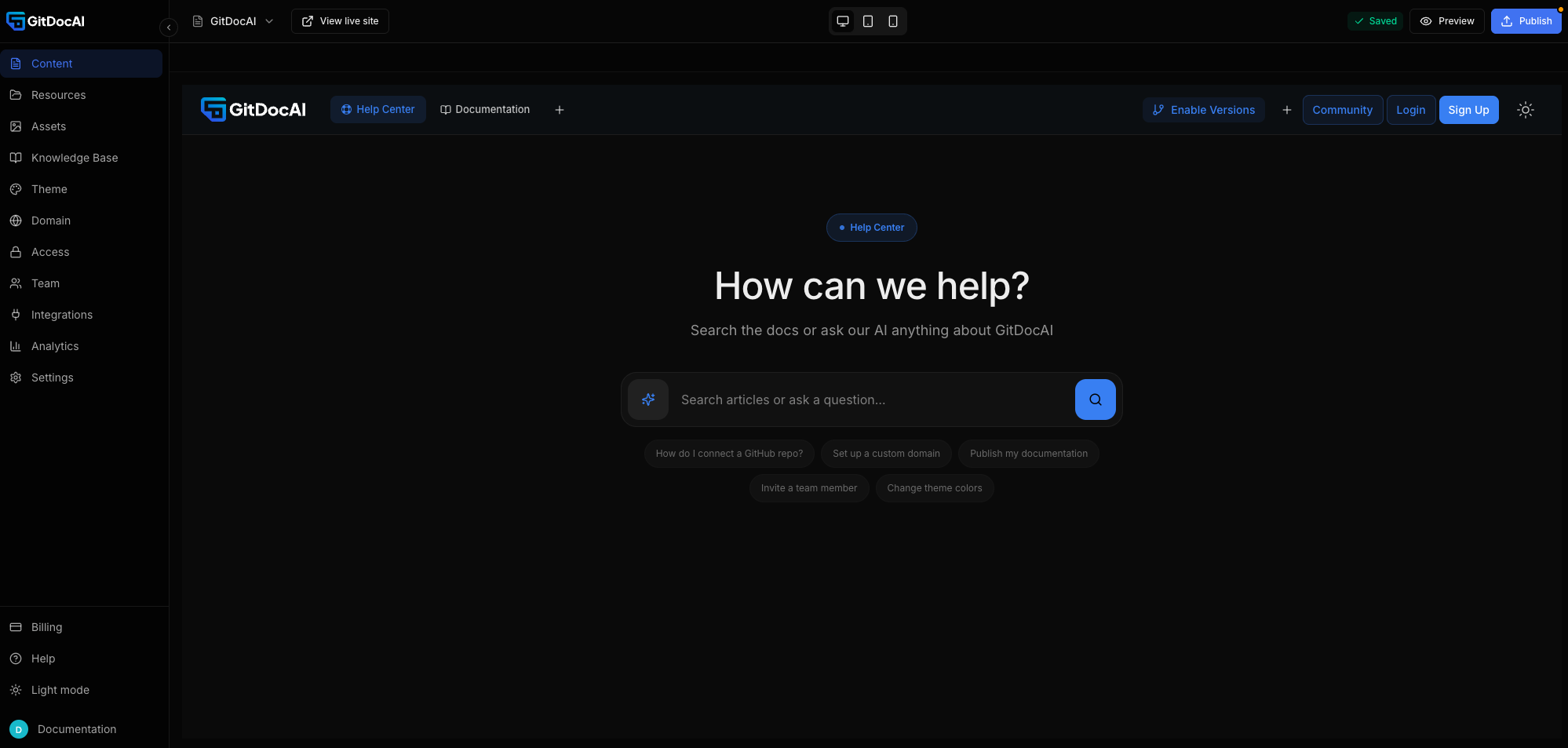
When you open a documentation site in GitDocAI, you'll manage it using the main sidebar. The sidebar is organized logically to help you build, configure, and manage your site.
The top of the sidebar is where you build your site:
Content: Manage your sections, folders, and pages.
Resources: Connect and manage your GitHub repos, files, and links.
Assets: Upload and manage images and media.
Knowledge Base: Turn your site's landing page into a search-first help center with AI-powered Q&A for your readers.
Customize how your site looks and who can access it:
Theme: Adjust colors, logos, and visual styling.
Domain: Set up your custom URL and automatic SSL.
Access: Control public/private visibility and authentication.
Integrations: Connect GitDocAI to other tools in your stack.
Manage your team and account:
Team: Invite colleagues to collaborate.
Analytics: See how readers are interacting with your docs.
Settings & Billing: Manage workspace preferences and subscriptions.
At the very bottom of the sidebar, you'll find a theme toggle (light/dark mode) and your user avatar, where you can access your personal profile and logout.