

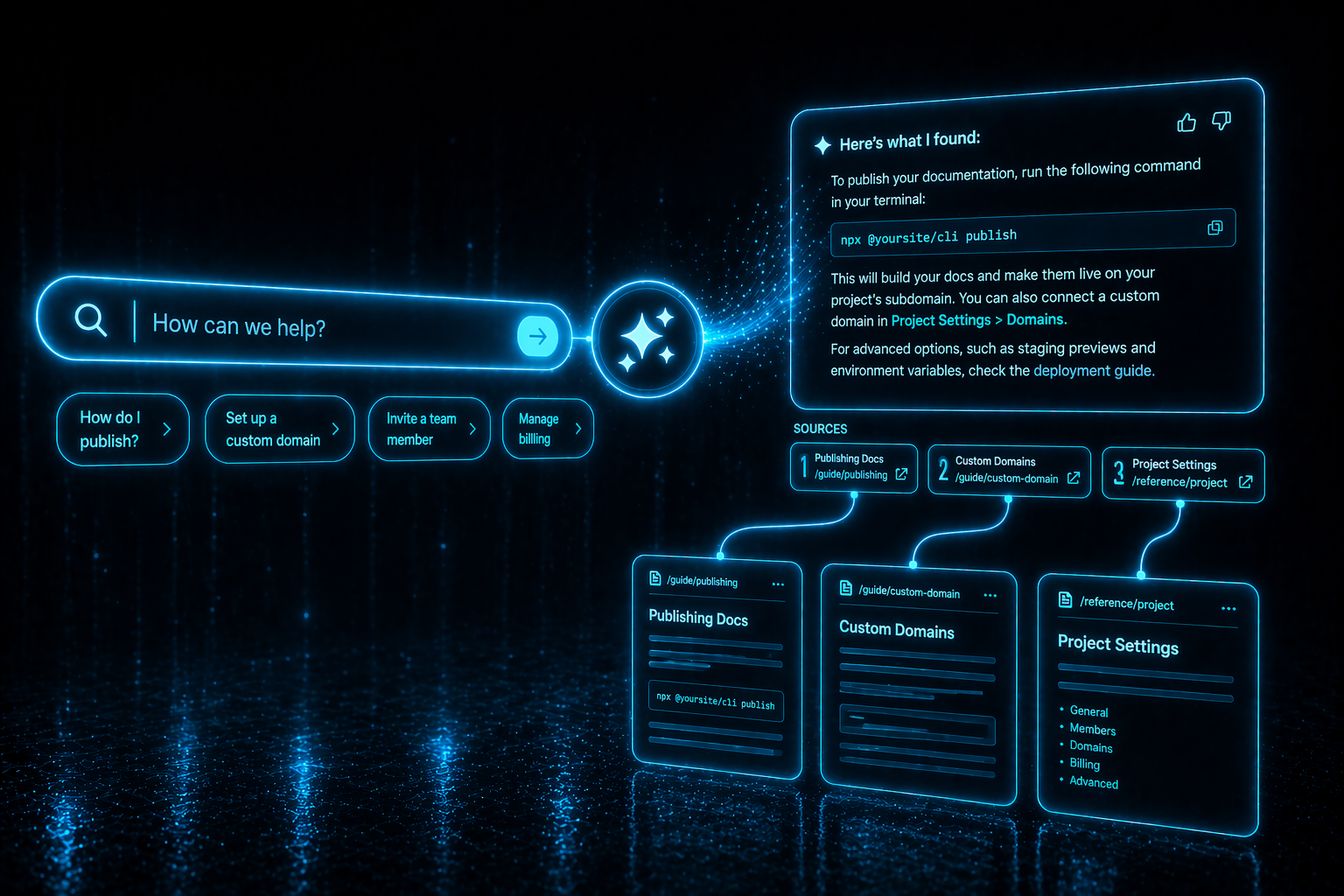
The Knowledge Base turns the landing page of your documentation site into a search-first help center. Instead of landing on a table of contents, readers land on a hero with a search bar, suggested queries, and direct access to ask questions in natural language — answered by AI using your own content.
This page shows everything you can configure from the Knowledge Base page in the dashboard sidebar.
What is the Knowledge Base?
When enabled, the KB becomes the first tab readers see. Two patterns to choose between:
KB disabled (default). Readers land on your first documentation section and browse the sidebar tree. Best when docs are primarily read top-to-bottom, like a tutorial series.
KB enabled. Readers land on a search-first hub with suggested queries and AI Q&A. Best when readers are coming to find specific answers — typical of support docs, product help centers, and reference-heavy sites.
Both can coexist — the KB doesn't replace your structured sections.
Enabling the Knowledge Base
A single master toggle at the top of the Knowledge Base page turns the whole experience on or off.
Label: Enable Knowledge Base
Helper text: Show a public help center with AI-powered search
Default: on
When disabled, all the fields below fade and become non-editable.
Configuring the hero
The top of the KB landing page is a hero block with a heading, an optional subtitle, and a search bar.
Make the Description do double-duty as your differentiator. A line like "Search the docs or ask our AI anything about our product" sets expectations that readers can type real questions, not just keywords.
Search suggestions
Suggestions appear as clickable chips under the search bar. Clicking a chip runs that query immediately. They serve two purposes:
Discovery — surface common topics new users wouldn't know to look for.
Training — show readers the kind of questions they can ask ("How do I reset my password?" vs just "password").
Good examples:
"How do I connect a GitHub repo?"
"Set up a custom domain"
"Publish my documentation"
"Invite a team member"
"Change theme colors"
Avoid generic one-word suggestions like "pricing" or "setup" — they don't teach the reader that AI search accepts full sentences.
Display options
Show Categories
When on, the landing page displays section cards — one tile per top-level section of your documentation. Clicking a card drops the reader into that section's content.
Default: off
When to turn off: if your KB is meant to be purely search-driven and you don't want to expose the underlying section structure.
Show Popular Articles
When on, a Popular Articles section appears below the categories, highlighting specific pages you want to promote — or the most-viewed pages by default.
Default: on
Section Title — the heading shown above the list (default:
Popular Articles).Article selection — multi-select dropdown listing every page across every section.
Leave the selection empty and GitDocAI auto-ranks articles by view count. Pick articles manually when you want editorial control.
AI Search and Ask AI
The two reader-facing features that make the KB different aren't configured here — they work out of the box once the KB is enabled.
AI Search
Every query a reader types runs a hybrid search combining traditional full-text matching with semantic (vector) search. The result is that readers find the right content even when their wording doesn't exactly match what's in your docs.
No configuration required. GitDocAI indexes your content automatically on publish.
Ask AI
Readers can ask full natural-language questions ("How do I set up a custom domain?") and get a grounded answer generated from the content of your docs — with citations linking back to the specific pages the answer came from. Answers stream in real time.